VPN changes the route
PrintBridge connects through the local adapter when your VPN allows LAN access.
 PrintBridge
Windows 10 & 11
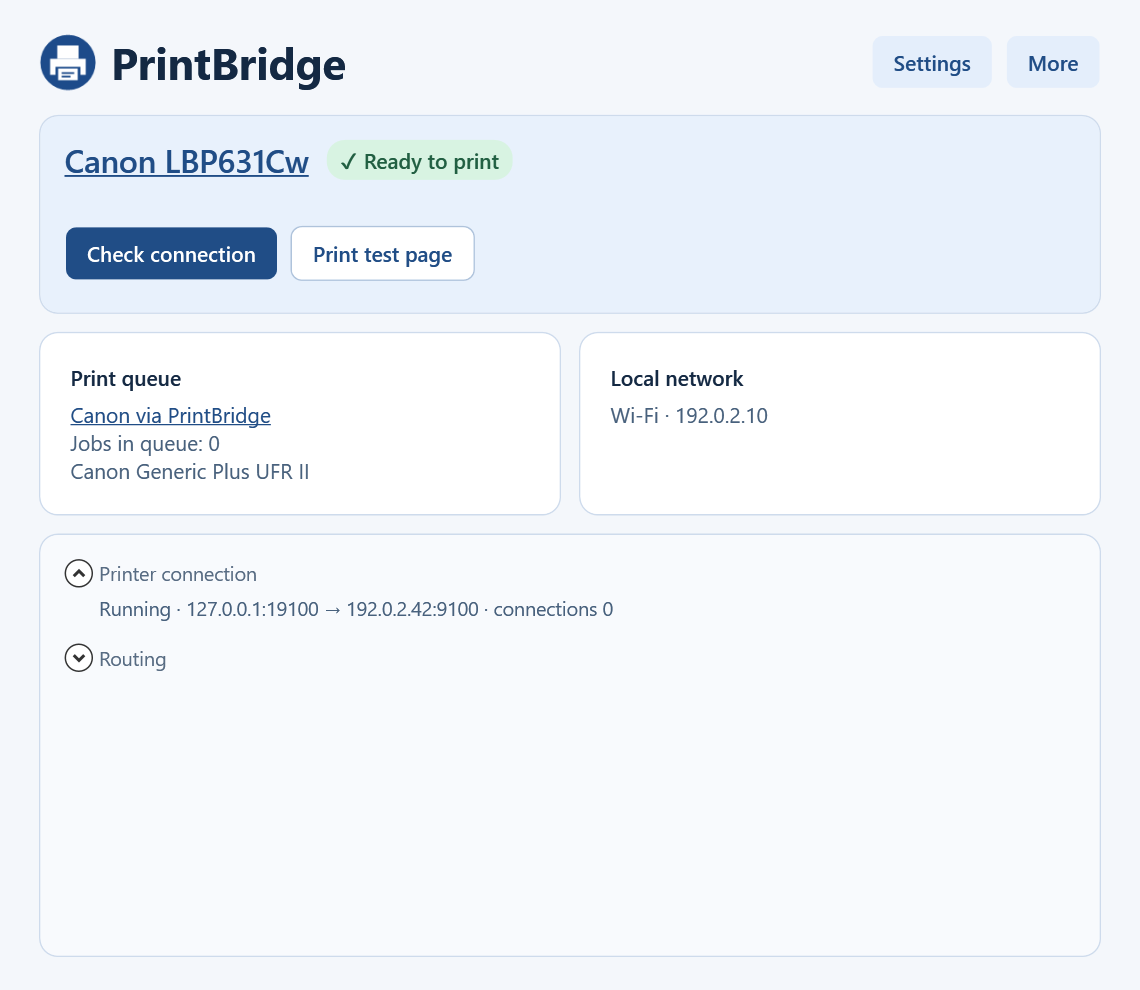
When a VPN changes your route or your router gives the printer a new IP, PrintBridge keeps your Windows print queue connected over Wi-Fi or Ethernet.
Free to use · x64 and ARM64 · EXE, ZIP and MSI
Watch what happens to a print job in two common network scenarios.
PrintBridge connects through the local adapter when your VPN allows LAN access.
PrintBridge checks the printer’s identity before sending jobs to its new address.
Available in 16 languages. Choose your language in EXE setup or under Settings → General → Language. See what’s new in 1.3.1 ↗
Requires an IPv4 local network and a printer and driver that support RAW TCP/9100.
Read the setup guide ↗Choose EXE, ZIP, or MSI for Windows x64 or ARM64.